
App blocking · iPhone & Android
How to block distracting apps until your tasks are done
Opening a social app can be automatic. A task-aware blocker adds a pause when unfinished work needs your attention, without making you block your phone all day.
This guide is published by the maker of Nonlate and explains our app’s approach. It is not an independent product comparison.
The short answer
Use an app blocker that checks unfinished tasks, not just a timer. In Nonlate, you choose distracting apps and a due-work window. When a selected app opens while an eligible task is overdue or due within that window, Nonlate blocks access with the presentation supported by your device.
This is not a permanent lock until every task in your list is complete. Available break actions and your blocking settings still matter. Calendar events do not trigger blocking.


Set up deadline-aware blocking in Nonlate
Add the work that actually needs attention
Create a task in Tasks and give it a realistic deadline. You can also connect a supported task service. Start with a manual task if you want to try blocking without connecting another account.
Choose a few distracting apps
Open Settings, find App blocking, then choose Blocked apps. Select the apps you tend to open instead of starting work. Complete the permission steps Nonlate shows for your platform.
Choose when due work should interrupt you
In Blocker settings, look for “Block when tasks are due within.” Choose the window that fits your day and make sure blocking is enabled. A task due next week should not be treated like a task due shortly unless your selected window includes it.
Make time to do the task
Use Planner and Schedule to choose when to work. Planning a task does not change its deadline, and a calendar event is not a blocking task.
Check the interruption and break settings
Open one of your selected distracting apps while an unfinished task qualifies for blocking. Return to the work, or use a supported timed break when appropriate. Optional Focus Lock removes the quick-break button from the blocker; a break can still be started from Home inside Nonlate after a due-task check and reflection pause.
Menu wording can vary with your app version and language. Keep essential communication, navigation and emergency tools accessible when choosing distractions to block.
What changes between iPhone and Android?
The idea is the same—due work before selected distractions—but the operating systems allow different blocker screens.
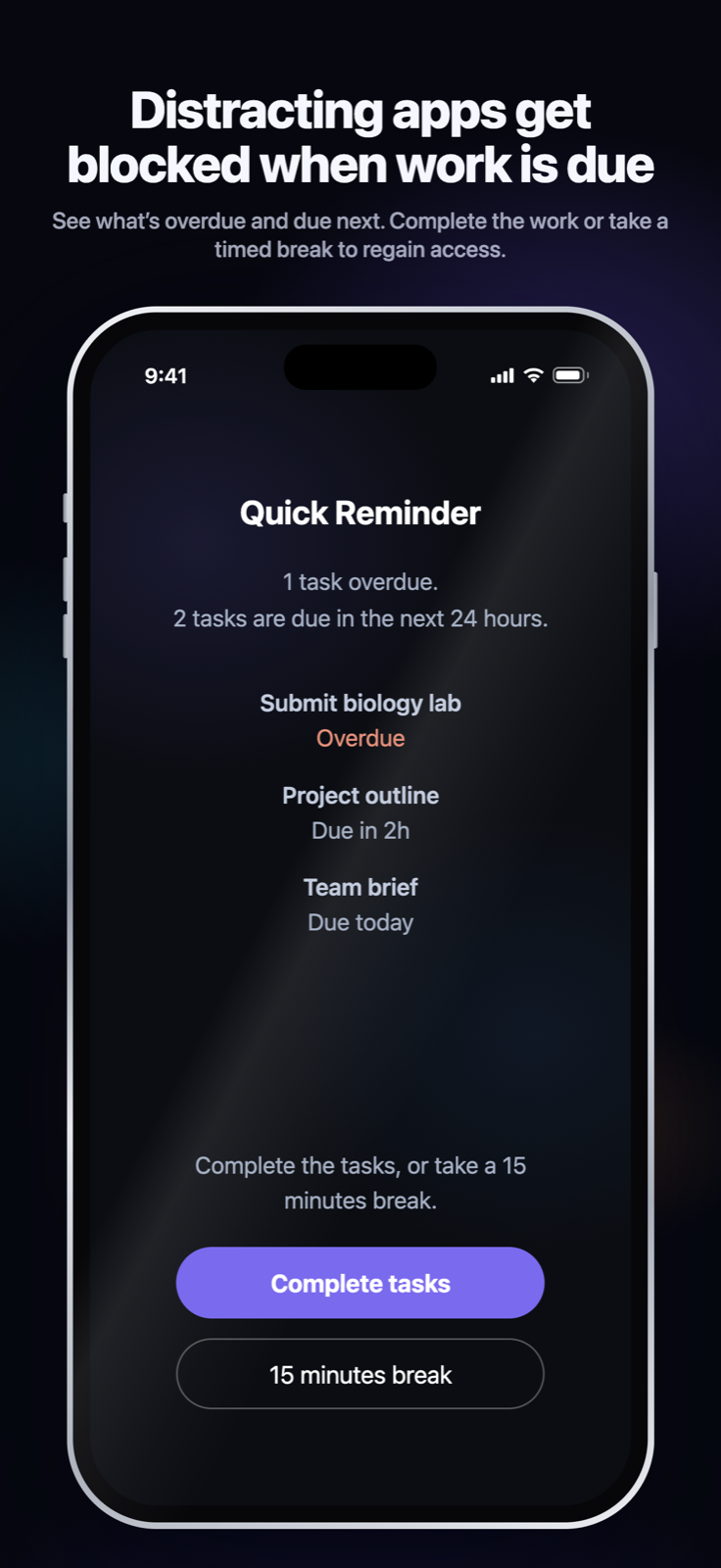
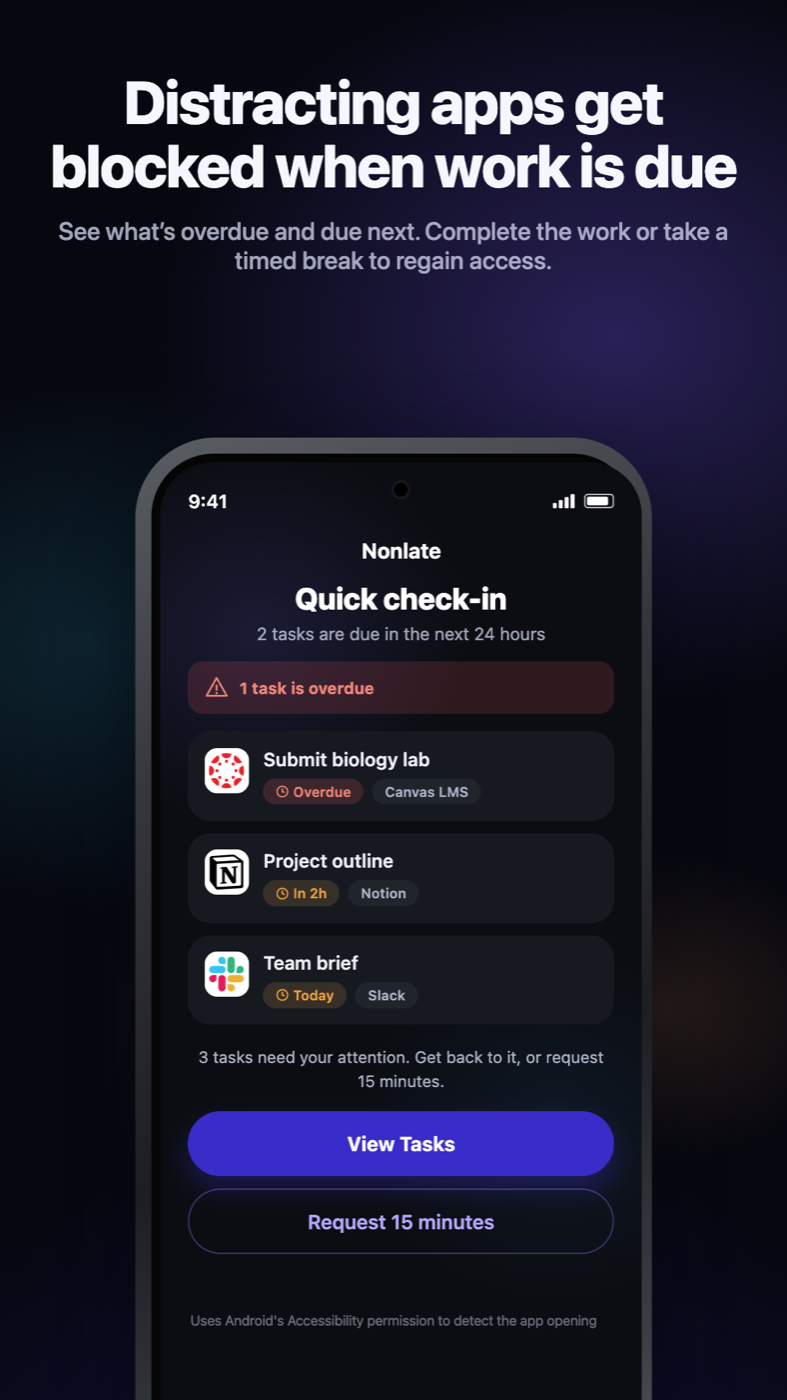
Neither version is intended as tamper-proof device management. Permissions, available break actions and operating-system settings affect what can be blocked. You remain in control of those settings.
A practical example: a report due tonight
Suppose your report is due at 8 p.m. and you select a due-work window that includes it. You also choose a social app as a distraction. If the report is unfinished when you open that app, Nonlate can interrupt access.
Putting a work session in Planner helps you decide when to start, but does not move the 8 p.m. deadline. Completing the report removes that task as a blocking reason. Another qualifying unfinished task can still keep blocking active; completing one task does not necessarily unlock every selected app.
If blocking does not appear
- Check the task: is it unfinished, eligible for blocking, and inside the selected due-work window? Check any task-specific app-blocking choice, too.
- Check the app: is it in your selected blocked-app list, and is blocking switched on?
- Check temporary access: an active break can allow access while tasks remain due.
- Check permissions: iPhone needs Screen Time authorization; Android needs the required Accessibility permission. If access was revoked, follow the app’s setup again.
- Check connected tasks: refresh Nonlate if a task changed in another service. Sync speed depends on the provider, plan, permissions and device background limits; it is not always instant.
If the problem remains, contact Nonlate support with your app version, device and the steps that led to it. Do not include passwords or private task content you do not want to share.
Common questions
Can I try this without a subscription?
Yes. Nonlate’s Free plan includes manual tasks and core blocking for up to three distracting apps. No Nonlate account is required, and every plan is ad-free. Connecting an external source is optional and has separate trial and subscription limits. See the current plans and trial details; localized store prices and purchase terms apply.
Will it block apps whenever my calendar is busy?
No. Calendar events appear in Schedule but do not trigger blocking. Nonlate checks eligible unfinished tasks and their deadlines instead.
Is this the same as a daily screen-time limit?
No. A daily usage limit responds to how long you use an app. Nonlate’s deadline-aware blocking responds to unfinished due work. If you only need a fixed daily usage cap, your phone’s built-in screen-time controls may be enough.
Does blocking guarantee that I will finish my work?
No. Blocking adds friction before a distraction; it does not do the task for you. Pair it with a small next action and a realistic work session. Avoid treating an app as a guarantee of productivity.